How I Made My Terminal Fast and Consistent Across Mac and Windows
I used to have two totally different terminal setups: iTerm2 with Oh My Zsh on my Mac, and Windows Terminal with Oh My Posh on my PC. They were slow to load, heavy, and looked nothing alike.
So I ripped them out and rebuilt everything using Ghostty, Starship, and eza.
Here is why it’s a massive upgrade, and how you can do it too.
Why the Switch?
- Speed: Oh My Zsh and Oh My Posh add a lot of startup bloat. Starship is written in Rust and is a single compiled binary. It renders instantly.
- Consistency: Because Starship is cross-platform, I use the exact same
starship.tomlfile on both Mac and PC. Same prompt, same Git integration, same colors. - Better Terminals: Ghostty on Mac uses GPU rendering for a buttery smooth experience. On Windows, Windows Terminal + PowerShell 7 is the perfect combo.
- Better
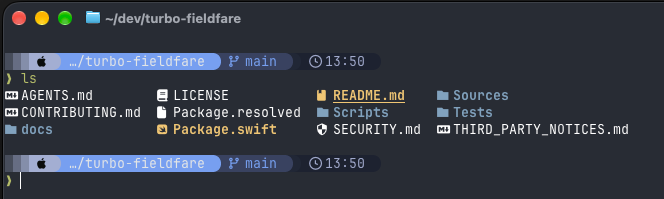
ls: Replacing the standardlscommand withezagives you instant, colorful file listings with icons.
Let’s set it up. We’ll use the Tokyo Night theme on both platforms so they look identical.
🍎 Part 1: macOS (Ghostty + Starship)
1. Install the tools via Homebrew:
brew install --cask ghostty
brew install starship eza zsh-autosuggestions zsh-syntax-highlighting
brew install --cask font-meslo-lg-nerd-font
2. Clean up your .zshrc:
Remove Oh My Zsh entirely. We’ll load the standalone plugins instead. Add this to your ~/.zshrc:
# Load completions and plugins
autoload -Uz compinit && compinit
source /opt/homebrew/share/zsh-autosuggestions/zsh-autosuggestions.zsh
source /opt/homebrew/share/zsh-syntax-highlighting/zsh-syntax-highlighting.zsh

# Add eza aliases
alias ls='eza --icons'
alias ll='eza -la --icons'
alias la='eza -la --icons'
alias lt='eza --tree --level=2 --icons'

# Initialize Starship (MUST be last)
eval "$(starship init zsh)"
3. Configure Ghostty:
Run ghostty +edit-config and add these lines:
font-family = MesloLGS Nerd Font
shell-integration-features = sudo,ssh-terminfo,ssh-env
4. Apply the Tokyo Night Theme:
starship preset tokyo-night -o ~/.config/starship.toml🪟 Part 2: Windows (Windows Terminal + PowerShell)
1. Install the tools via Winget:
winget install Starship.Starship
winget install eza-community.eza
(Make sure to download the Meslo Nerd Font and “Install for all users”).
2. Create an ultra-fast PowerShell Profile:
Open your profile (notepad $PROFILE) and paste this. We use a caching trick for Starship to make it load instantly:
### Ultra-Fast PowerShell Profile

# Eza aliases (Remove default PowerShell alias first)
Remove-Item Alias:ls -ErrorAction SilentlyContinue
function ls { eza --icons $args }
function ll { eza -la --icons $args }
function la { eza -la --icons $args }
function lt { eza --tree --level=2 --icons $args }

# FAST STARSHIP (Cached for speed)
if ($Host.Name -eq 'ConsoleHost' -and -not [Console]::IsInputRedirected -and -not [Console]::IsOutputRedirected) {
    $starshipCache = Join-Path $env:TEMP 'starship-init.ps1'
    if (-not (Test-Path $starshipCache) -or ((Get-Date) - (Get-Item $starshipCache).LastWriteTime).TotalDays -gt 7) {
        starship init powershell > $starshipCache
    }
    if (Test-Path $starshipCache) { . $starshipCache }
}
3. Update Terminal Settings:
Open Windows Terminal Settings (Ctrl + ,), go to your PowerShell profile -> Appearance, and set the Font face to MesloLGS Nerd Font.
4. Apply the Tokyo Night Theme:
Run this in PowerShell to generate the same theme locally:
starship preset tokyo-night -o $HOME\.config\starship.toml --force(Or just copy your starship.toml file from your Mac to C:\Users\YourName\.config\)
The Result
By ditching the heavy frameworks and using modern, compiled tools, I cut my shell startup time by over 400%. My Mac and PC now have the exact same lightning-fast, beautiful Tokyo Night setup.